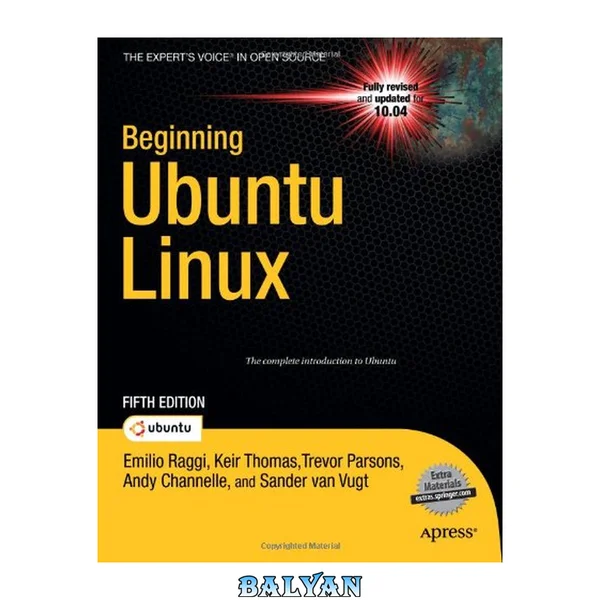
Ubuntu Linux is the fastest growing Linux-based operating system, and Beginning Ubuntu Linux, Fifth Edition teaches all of us—including those who have never used Linux—how to use it productively, whether you come from Windows or the Mac or the world of open source. Beginning Ubuntu Linux, Fifth Edition shows you how to take advantage of the newest Ubuntu release, Lucid Lynx. Based on the best-selling previous edition, Emilio Raggi maintains a fine balance between teaching Ubuntu and introducing new features. Whether you aim to use it in the home or in the office, you'll be introduced to the world of Ubuntu Linux, from simple word processing to using Cloud services. You'll learn how to control the Ubuntu system which you just installed from the Book DVD as you are guided through common tasks such as configuring the system GUI, listening to audio CDs and MP3s, producing documents, using VOIP and chat, and of course general system maintenance. This book also supplies a series of comprehensive tutorials on Ubuntu administration and security—essential for any Ubuntu user—while not neglecting matters pertaining to office applications and the Cloud. What you’ll learn Use Ubuntu as a daily desktop on your laptop or PC. Complete office tasks, such as creating Microsoft Office–compatible documents and spreadsheets, using e–mail, and managing contacts. Listen to MP3s, manage pictures and CDs, and watch movies using a user–friendly Linux desktop. Configure Ubuntu’s printer– and file–sharing features to share resources seamlessly with other computers on your network. Administer and secure your Ubuntu machine. Who this book is for Everyone who uses Ubuntu daily, whether in the office or in the home. Table of Contents Meet Ubuntu Linux GNU "slash" Linux Pre-installation Steps Installing Ubuntu Solving Installation Problems Booting Ubuntu for the First Time Getting Everything Up and Running How to Secure Your Computer Personalizing Ubuntu: Getting Everything Just Right Managing Your Data A World of Applications Working with Text Files Making the Move to OpenOffice.org Communicating with Others Social Networks and Cloud Computing Digital Audio Movies and Multimedia Digital Photos Playing Games Installing and Removing Software Understanding Linux Users and File Permissions Optimizing Your System Backing Up Data Scheduling Tasks Accessing Computers Remotely Taking Control of the System Introducing the BASH Shell Glossary of Linux Terms Getting Further Help Exploring the DVD-ROM and Other Ubuntu Versions Prelim 1 Contents 7 About the Authors 23 About the Technical Reviewers 24 Introduction 25 What You’ll Find in This Book 26 What’s New in the Fifth Edition 26 About the DVD-ROM Supplied with This Book 27 Conventions Used in This Book 27 Part 1: Introducing the World of Linux 29 Meet Ubuntu Linux 31 Ten Reasons to Try Ubuntu Linux 31 What Is Ubuntu Linux Anyway? 32 Ubuntu Linux Is an Operating System 32 Ubuntu Is a Distribution of Linux, Based on Debian 33 Ubuntu Linux Is a Full Desktop Solution 34 The Ubuntu Linux Experience 34 “Linux for Human Beings” 34 A Powerful yet Flexible Operating System 35 Continuous Improvements 36 The Product Family 37 The Ubuntu Linux Community 38 Praise for Ubuntu Linux 39 Should I Stop Using Windows? 39 Ubuntu Linux and its Strengths 40 Summary 40 GNU “slash” Linux 41 UNIX 41 The Rise of the IBM PC... and of Microsoft 42 RMS on Free Software 42 Copyleft 43 The Quest for a UNIX-like Operating System 44 Linus Torvalds and His Little Project 44 GNU “slash” Linux 45 The Linux Diaspora 46 Open Source 48 The South African Factor 48 The Year of the Linux Desktop 49 Summary 50 Part 2: Installing Ubuntu 51 Pre-installation Steps 53 Understanding Partitioning 53 Freeing Up Space 56 Reclaiming Space 56 Removing Windows 57 Using Another Hard Disk 57 Backing Up Your Data 59 Backing Up E-Mail Files 61 Making Notes 61 Summary 62 Installing Ubuntu 63 An Overview of the Installation Process 63 A Stage-by-Stage Installation Guide 65 Stage 1: Prepare the Windows Partition for Resizing 65 Stage 2: Boot from the DVD-ROM 67 Stage 3: Try or Install 68 Stage 4: Select Your Location and Time Zone 69 Stage 5: Confirm Your Keyboard Layout 70 Stage 6: Repartition Your Hard Disk 71 Resize the Main Partition 72 Use Entire Disk 73 Use the Largest Continuous Free Space 74 Use a Second Hard Disk 74 Manually Edit the Partition Table 75 Stage 7: Set Up a User 82 Stage 8: Import Documents and Settings 84 Stage 9: Confirm Installation Choices 84 Stage 10: Perform Installation 85 Stage 11: Reboot and Enjoy Ubuntu! 86 Summary 89 Solving Installation Problems 91 A. Preinstallation Problems 91 The Disc Doesn’t Boot 91 Solution 91 The Computer Is Having a Kernel Panic 92 Solution 92 The DVD Starts to Boot, but the Screen Goes Blank or Corrupted 92 Solution 92 The Computer Freezes During Installation 93 Solution 93 Installer “Unrecoverable Error” Message 94 Solution 94 My Notebook Display Looks Corrupted During Installation 94 Solution 94 I’m Using a KVM, and the Screen Looks Wrong 94 Solution 94 B. Installation Problems 95 I’m Offered Only a Text Login 95 Solution 95 The Computer Can’t Find My Hard Disk 96 Solution 96 I See Lots of Hard Disks in the Partitioner 96 Solution 96 I Have Too Many Partitions 96 Solution 96 C. Postinstallation Problems 97 My Monitor Resolution Is Not Recognized 97 Solution 97 My Keyboard or Mouse Isn’t Working 97 Solution 97 The Computer No Longer Boots 98 Solution 98 Ubuntu Is Working, but Windows Won’t Boot 98 Solution 98 I Can See Only a Text Login Prompt 99 Solution 99 Graphical Problems 99 Summary 102 Part 3: The No-Nonsense Getting Started Guide 103 Booting Ubuntu for the First Time 105 Starting Up 105 Logging In 107 Exploring the Desktop 108 First Impressions 109 Exploring the Panels 111 Shutting Down or Restarting Ubuntu 113 Quick Desktop Guides 114 Running Programs 118 Working with Virtual Desktops 118 Using the Mouse 120 Cutting and Pasting Text 121 Summary 121 Getting Everything Up and Running 123 Will Ubuntu Support My Hardware? 123 Using Proprietary vs. Open Source Drivers 125 Installing Device Manager 126 Configuring Ubuntu 127 Configuring Input Devices 128 Configuring Mouse Options 128 General Mouse Settings 128 Accessibility Settings 130 Touchpad Settings 131 Changing Keyboard Settings 131 General Settings 131 Layouts Settings 132 Accessibility Settings 133 Mouse Keys Settings 133 Typing Break Settings 134 Creating Keyboard Shortcuts 134 Getting Online 134 Using NetworkManager 135 Configuring Wired Networking 136 Connecting to a Wireless Network 138 Installing Windows Wireless Network Device Drivers 141 Installing the NdisWrapper Configuration Tools 142 Installing the Windows XP Drivers 143 Connecting to a Mobile Broadband Network 149 Working with a Proxy Server 151 Adding a Printer 152 Configuring a Local Printer 153 Configuring a Network Printer 155 Configuring a Windows/SMB Shared Printer 156 Administering a Printer 158 Using Digital Cameras, MP3 Players, and USB Memory Sticks 158 Configuring a Scanner 160 Installing 3D Drivers and Activating Desktop Visual Effects 161 Configuring Bluetooth 163 Pairing Bluetooth Devices 164 Transferring Files Between Bluetooth Devices 165 Browsing Files on a Remote Device 165 Sending Files from an Ubuntu PC to Another Device 166 Using a Bluetooth Keyboard or Mouse 167 Configuring Sound Cards 168 Using Power-Management Preferences 169 On Mains Power 170 On Battery Power 170 General 171 Summary 173 How to Secure Your Computer 175 Windows Security vs. Linux Security 175 Root and Ordinary Users 176 Encryption 178 Setting Up for Encryption 179 Generating a Key Pair 179 Exporting Your Public Key 183 Publishing Your Public Key 184 Importing and Signing Public Keys 186 Encrypting and Decrypting Files 188 Encrypting a File 188 Decrypting a File 192 Signing and Encrypting E-Mail 192 Validating E-Mail 193 Decrypting E-Mail 193 Commonsense Security 193 Online Updates 194 Configuring the Ubuntu Firewall 197 Installing Firestarter 197 Configuring Firestarter 198 Setting Inbound Rules 199 Setting Outbound Rules 201 Turning Off Diagnostic Services 202 Adding Virus Scanning to Ubuntu 203 Installing ClamTk 203 Updating the ClamAV Database 204 Scanning for Viruses 204 Dealing with Infections 206 Summary 208 Personalizing Ubuntu: Getting Everything Just Right 209 Changing the Look and Feel 209 Altering the Theme 210 Changing Individual Theme Components 211 Installing Additional Components 213 Changing the Desktop Background 215 Switching and Adding Background Images 215 Choosing a Background Style 216 Setting Font Preferences 216 Using Desktop Visual Effects 217 Using the Standard Visual Effects 218 Using the Extra Visual Effects 220 Personalizing Visual Effects 221 Changing Your Login Picture 226 Adding and Removing Desktop Items 227 Adding a Shortcut 227 Creating a Launcher 227 Using Ubuntu Tweak 228 Creating a Link 229 Personalizing the Panels 230 Adding and Removing Menus 230 Adding All the Menus to a Panel 231 Adding a Start-Like Button to a Panel 231 Deleting a Menu 232 Modifying the Menus 232 Moving Panel Items 232 Working with Applets 232 Summary 235 Managing Your Data 237 Using Nautilus 237 Changing the View Mode 240 Searching for Files 241 Working with File and Folder Icons 242 Special Nautilus Windows 242 Launching Files and Running Programs 244 Viewing File Sizes and Other Information 246 Tips and Tricks for Nautilus 246 The Home Folder 247 Understanding File System Concepts 250 The File System Explained 250 Drive References 253 Names of Files 253 Real Files and Virtual Files 254 Working with Disks and Volumes 256 Mounting Volumes 256 Viewing Disk and Volume Information 257 Managing Disks 258 Managing Volumes 259 Advanced File Operations 259 Working with Files in Windows Partitions 260 Accessing Networked Files 260 Sharing a Folder from Within Ubuntu 262 Accessing Removable Storage Devices 263 Working in the Computer Window 263 Ejecting Media 264 Summary 265 Part 4: Working and Playing with Ubuntu 267 A World of Applications 269 Available Software 269 A Quick Start with Common Ubuntu Programs 272 Word Processing: OpenOffice.org Writer 272 Spreadsheet: OpenOffice.org Calc 274 Presentations: OpenOffice.org Impress 275 Database: OpenOffice.org Base 277 E-Mail/Personal Information Manager: Evolution 278 Web Browser: Firefox 279 Audio Playback: Rhythmbox 281 Movie Playback: Totem Movie Player 282 CD/DVD Burning: Brasero/Nautilus CD/DVD Creator 283 Photo Editing: F-Spot and GIMP 284 Other Handy Applications 285 Calculator 286 Archive Manager 286 Dictionary 287 Empathy Instant Messaging Client 288 Ekiga 289 Games 290 Windows Applications 291 Summary 292 Working with Text Files 293 Text: A History Lesson 293 Piping and Redirecting 293 The Text Editor Wars 297 Working with Text Files 298 Introducing gedit 298 Working with gedit 300 Comparing Multiple Files with Diffuse 305 Summary 306 Making the Move to OpenOffice.org 307 Similarities to Microsoft Office 307 OpenOffice.org Key Features 309 File Compatibility 309 The Right Fonts 312 Copying Windows Fonts 313 Installing TrueType Core Fonts 313 Introducing the Interface 315 Customizing the Interface 316 Adding Functions to Toolbars 316 Adding a New Toolbar 318 Customizing Menus 318 Personalizing the Look and Feel 319 Configuring OpenOffice.org Options 319 Using OpenOffice.org Core Functions 320 Using Wizards 320 Getting Help 321 Inserting Objects with Object Linking and Embedding 321 Creating Macros 323 Saving Files 323 Beginning OpenOffice.org Applications 324 OpenOffice.org Word Processor: Writer 325 Formatting Text 325 Checking Spelling and Grammar 326 Inserting Pictures 326 Working with Tables 327 Adding Headers and Footers 327 Working Collaboratively 327 OpenOffice.org Spreadsheet: Calc 328 Entering and Formatting Data 329 Deleting and Inserting Data and Cells 330 Working with Functions 330 Sorting Data 330 Using Filters 330 Creating Charts 331 OpenOffice.org Presentation: Impress 331 Creating a Quick Presentation 331 Working in Impress 331 Animating Slides 333 Applying Fontwork 334 Using 3D Effects 334 Exporting a Presentation As a Flash File 334 Summary 335 Communicating with Others 337 Introducing Evolution 337 Basic E-Mail Tasks 339 Configuring E-Mail Access 339 Sending and Receiving E-Mail 341 Reading E-Mail 343 Deleting Messages 343 Flagging Messages 344 Composing a Message 345 Creating an E-Mail Signature 347 Advanced E-Mail Tasks 348 Creating New Folders 348 Dealing with Junk E-Mail 349 Sorting and Filtering Messages 349 Creating Search Folders 351 Contacts 352 Adding or Editing Contact Information 352 Creating a Contact List 354 Calendars 354 Specifying Appointment Types 354 Adding or Editing a Diary Entry 355 Additional Calendars 357 Memos and Tasks 358 Configuring Instant Messaging 359 Installing Skype 362 Ekiga 363 Summary 364 Social Networks and Cloud Computing 365 Social Networking Applications 366 Introducing the MeMenu 366 Microblogging with Gwibber 368 Cloud-Based Services 370 Storing Your Data Online with Ubuntu One 370 Subscribing to Ubuntu One 371 Configuring your Computer to Synchronize Files 372 Synchronizing Notes 373 Synchronizing Evolution Contacts 374 Accessing Your Information on the Web 374 Sending Photos to the Cloud with F-Spot 375 Summary 376 Digital Audio 377 Issues Surrounding Multimedia Playback 377 Playing Audio Files 379 Installing Codecs in a Single Package 380 Installing Codecs when Required 381 Using Rhythmbox Music Player 383 Purchasing from Online Music Stores 385 Using the Jamendo Store 386 Purchasing from Magnatune 386 Purchasing from Ubuntu One 387 Tuning In to Online Radio Stations 388 Listening to Podcasts 389 Listening to Audio CDs and Ripping Tracks 390 Choosing a Format 391 Ripping Tracks 392 Creating Your Own CDs 393 Recording from a Microphone 395 Summary 396 Movies and Multimedia 397 Installing Playback Software 397 Installing Codecs 398 Installing RealPlayer 11 399 Adding Flash Support 401 Installing a Flash Plug-in 402 Removing a Flash Plug-in 402 Adding Java Support 402 Watching Movies 403 Watching DVDs 405 Watching TV 409 Checking for Video Input 409 Installing tvtime 409 Summary 410 Digital Photos 411 Downloading and Cataloging Images 411 Connecting Your Camera 411 Importing Photos Using F-Spot 412 Tweaking Photos 413 Tagging Images 414 Using GIMP for Image Editing 416 The Basics of GIMP 421 Making Color Corrections 423 Cropping and Healing 425 Applying Filters 425 Sharpening 428 Summary 429 Playing Games 431 Linux Games 431 Official Sources 431 Additional Sources 435 Adobe Flash and Web-based Gaming 436 Installing Windows Games 438 Summary 439 Part 5: Keeping Your System Running 441 Installing and Removing Software 443 Using the Ubuntu Software Center 444 Navigating the Ubuntu Software Center 444 Browsing and Searching for Software 446 Software Installation Basics 449 Formats of Linux Installation Files 449 Package Management 450 Dependency Management 451 Software Repositories 452 Categories of Repositories 454 Repository Components 455 Advanced Application Management 456 Managing Ubuntu Software Options 457 Adding Software Sources 458 Managing Software Updates 459 The Synaptic Package Manager in Depth 461 Searching for Software 461 Installing Software 463 Removing Software 465 Manually Installing Using Gdebi 465 Installing Windows Applications with Wine 466 Installing and Configuring Wine 466 Installing a Windows Application 467 Installing from Source 468 Installing the Compiler Tools 468 Unpacking the Source Tarball and Solving Dependencies 468 Compiling 469 Summary 470 Understanding Linux Users and File Permissions 471 Understanding User and Group Accounts 471 Users and Groups 471 Root User 472 Users and File Permissions 473 Root vs. Sudo 474 UIDs and GIDs 475 Adding and Deleting Users and Groups 475 Adding and Deleting Users 475 Creating and Deleting Groups 477 Adding and Changing Passwords 478 Understanding File and Folder Permissions 480 Viewing Permissions 480 Typical Data File Permissions 481 Permissions on a User’s Directory 482 Permissions on a Directory Owned by Root 482 Altering Permissions 483 Summary 486 Optimizing Your System 487 Speeding Up Booting 487 Reducing the Boot Menu Delay 488 Managing GNOME Sessions 489 Prelinking 492 Configuring Prelinking 493 Deactivating Prelinking 493 Optimizing the Kernel 494 Freeing Up Disk Space 495 Emptying the /tmp Folder 496 Emptying the Cache of Package Files 496 Removing Unused Software 497 Summary 497 Backing Up Data 499 What Data Should You Back Up? 499 Using Simple Backup 500 Backing Up Data via Simple Backup 501 Including Files and Folders in the Backup Job 502 Excluding Files and Folders from the Backup Job 502 Changing the Backup Directory Destination 503 Changing the Time Period Between Backups 504 Purging Old Backup Files 504 Restoring Data via Simple Backup 504 Creating and Compressing Archives 505 Creating Archives with Nautilus 505 Managing Archive Files 506 Viewing the Contents of an Archive File 506 Extracting Folders and Files 507 Saving the File to a CD-R/RW or to a DVD-R 507 Summary 508 Scheduling Tasks 509 Scheduling with GNOME Scheduler 509 Creating a Recurrent Task 510 Scheduling One-Off Tasks 513 Scheduling with anacron 514 Summary 516 Accessing Computers Remotely 517 Using Secure Shell 517 Logging In to a Remote Computer 518 Transferring Files Between Remote Computers 521 Using scp 521 Using sftp 521 Accessing GUI Applications Remotely 523 Running X Applications on a Remote Computer 524 Accessing Ubuntu via Remote Desktop 525 Connecting to Remote Windows Computers 526 Connecting to Windows 7 and Vista 526 Connecting to Windows XP Professional, 2000, and NT 527 Connecting to Other Computers 528 Summary 529 Taking Control of the System 531 Viewing Processes 531 Controlling Processes 535 Killing Processes 535 Controlling Zombie Processes 537 Using Other Commands to Control Processes 538 Controlling Jobs 539 Summary 541 Part 6: Appendixes 543 Introducing the BASH Shell 545 What Is the BASH Shell? 545 Why Bother with the Shell? 546 When Should You Use the Shell? 548 Getting Started with the Shell 549 Running Programs 549 Getting Help 551 Running the Shell via a Virtual Console 551 Working with Files 552 Listing Files 554 Copying Files and Directories 555 Moving Files and Directories 556 Deleting Files and Directories 557 Changing and Creating Directories 558 Using Autocompletion 559 Autocompletion with Files and Paths 560 Viewing Available Options 560 Other Autocompletion Examples 560 Using Keyboard Shortcuts 561 Shortcuts for Working in BASH 561 Shortcuts for System Control 562 Using the Command History 562 Piping and Directing Output 563 Piping the Output of Commands 564 Redirecting Output 565 Using Brace Expansion 566 BASH Command Index 567 Glossary of Linux Terms 581 Symbols 581 A 582 B 583 C 584 D 586 E 587 F 587 G 588 H 590 I 590 J 591 K 591 L 592 M 593 N 594 O 594 P 594 R 595 S 596 T 599 U 600 V 601 W 601 X 601 Getting Further Help 603 Read the Manual! 603 Man Pages 603 How to Read a Man Page 604 Tips for Working with Man Pages 605 Info Pages 605 README Files and Other Documentation 606 Getting Help Online 607 Forums 607 Mailing Lists 608 Other Official Sites 608 Third-Party Sites 608 Exploring the DVD-ROM and Other Ubuntu Versions 611 Version Numbers, Code Names, and Support 611 Other Versions of Ubuntu 612 Installation of Other Versions 615 Kubuntu 615 Xubuntu 616 Edubuntu 618 Creating Bootable CDs from ISO Images 618 Burning CDs Using Ubuntu 620 Burning CDs Using Windows Vista/XP 620 Burning CDs Using Windows 7 620 Burning CDs Using Mac OS X 621 Index 623 ¦ ¦ ¦ Symbols and Numerics 623 ¦ A 623 ¦ B 625 ¦ C 627 ¦ D 631 ¦ E 633 ¦ F 634 ¦ G 637 ¦ H 639 ¦ I 640 ¦ J 642 ¦ K 642 ¦ L 643 ¦ M 644 ¦ N 646 ¦ O 648 ¦ P 649 ¦ Q 652 ¦ R 652 ¦ S 654 ¦ T 658 ¦ U 660 ¦ V 663 ¦ W 663 ¦ Y 665 ¦ Z 665 ¦ X 665 Prelim......Page 1 Contents......Page 7 About the Authors......Page 23 About the Technical Reviewers......Page 24 Introduction......Page 25 What’s New in the Fifth Edition......Page 26 Conventions Used in This Book......Page 27 Part 1: Introducing the World of Linux......Page 29 Ten Reasons to Try Ubuntu Linux......Page 31 Ubuntu Linux Is an Operating System......Page 32 Ubuntu Is a Distribution of Linux, Based on Debian......Page 33 “Linux for Human Beings”......Page 34 A Powerful yet Flexible Operating System......Page 35 Continuous Improvements......Page 36 The Product Family......Page 37 The Ubuntu Linux Community......Page 38 Should I Stop Using Windows?......Page 39 Summary......Page 40 UNIX......Page 41 RMS on Free Software......Page 42 Copyleft......Page 43 Linus Torvalds and His Little Project......Page 44 GNU “slash” Linux......Page 45 The Linux Diaspora......Page 46 The South African Factor......Page 48 The Year of the Linux Desktop......Page 49 Summary......Page 50 Part 2: Installing Ubuntu......Page 51 Understanding Partitioning......Page 53 Reclaiming Space......Page 56 Using Another Hard Disk......Page 57 Backing Up Your Data......Page 59 Making Notes......Page 61 Summary......Page 62 An Overview of the Installation Process......Page 63 Stage 1: Prepare the Windows Partition for Resizing......Page 65 Stage 2: Boot from the DVD-ROM......Page 67 Stage 3: Try or Install......Page 68 Stage 4: Select Your Location and Time Zone......Page 69 Stage 5: Confirm Your Keyboard Layout......Page 70 Stage 6: Repartition Your Hard Disk......Page 71 Resize the Main Partition......Page 72 Use Entire Disk......Page 73 Use a Second Hard Disk......Page 74 Manually Edit the Partition Table......Page 75 Stage 7: Set Up a User......Page 82 Stage 9: Confirm Installation Choices......Page 84 Stage 10: Perform Installation......Page 85 Stage 11: Reboot and Enjoy Ubuntu!......Page 86 Summary......Page 89 Solution......Page 91 Solution......Page 92 Solution......Page 93 Solution......Page 94 Solution......Page 95 Solution......Page 96 Solution......Page 97 Solution......Page 98 Graphical Problems......Page 99 Summary......Page 102 Part 3: The No-Nonsense Getting Started Guide......Page 103 Starting Up......Page 105 Logging In......Page 107 Exploring the Desktop......Page 108 First Impressions......Page 109 Exploring the Panels......Page 111 Shutting Down or Restarting Ubuntu......Page 113 Quick Desktop Guides......Page 114 Working with Virtual Desktops......Page 118 Using the Mouse......Page 120 Summary......Page 121 Will Ubuntu Support My Hardware?......Page 123 Using Proprietary vs. Open Source Drivers......Page 125 Installing Device Manager......Page 126 Configuring Ubuntu......Page 127 General Mouse Settings......Page 128 Accessibility Settings......Page 130 General Settings......Page 131 Layouts Settings......Page 132 Mouse Keys Settings......Page 133 Getting Online......Page 134 Using NetworkManager......Page 135 Configuring Wired Networking......Page 136 Connecting to a Wireless Network......Page 138 Installing Windows Wireless Network Device Drivers......Page 141 Installing the NdisWrapper Configuration Tools......Page 142 Installing the Windows XP Drivers......Page 143 Connecting to a Mobile Broadband Network......Page 149 Working with a Proxy Server......Page 151 Adding a Printer......Page 152 Configuring a Local Printer......Page 153 Configuring a Network Printer......Page 155 Configuring a Windows/SMB Shared Printer......Page 156 Using Digital Cameras, MP3 Players, and USB Memory Sticks......Page 158 Configuring a Scanner......Page 160 Installing 3D Drivers and Activating Desktop Visual Effects......Page 161 Configuring Bluetooth......Page 163 Pairing Bluetooth Devices......Page 164 Browsing Files on a Remote Device......Page 165 Sending Files from an Ubuntu PC to Another Device......Page 166 Using a Bluetooth Keyboard or Mouse......Page 167 Configuring Sound Cards......Page 168 Using Power-Management Preferences......Page 169 On Battery Power......Page 170 General......Page 171 Summary......Page 173 Windows Security vs. Linux Security......Page 175 Root and Ordinary Users......Page 176 Encryption......Page 178 Generating a Key Pair......Page 179 Exporting Your Public Key......Page 183 Publishing Your Public Key......Page 184 Importing and Signing Public Keys......Page 186 Encrypting a File......Page 188 Signing and Encrypting E-Mail......Page 192 Commonsense Security......Page 193 Online Updates......Page 194 Installing Firestarter......Page 197 Configuring Firestarter......Page 198 Setting Inbound Rules......Page 199 Setting Outbound Rules......Page 201 Turning Off Diagnostic Services......Page 202 Installing ClamTk......Page 203 Scanning for Viruses......Page 204 Dealing with Infections......Page 206 Summary......Page 208 Changing the Look and Feel......Page 209 Altering the Theme......Page 210 Changing Individual Theme Components......Page 211 Installing Additional Components......Page 213 Switching and Adding Background Images......Page 215 Setting Font Preferences......Page 216 Using Desktop Visual Effects......Page 217 Using the Standard Visual Effects......Page 218 Using the Extra Visual Effects......Page 220 Personalizing Visual Effects......Page 221 Changing Your Login Picture......Page 226 Creating a Launcher......Page 227 Using Ubuntu Tweak......Page 228 Creating a Link......Page 229 Adding and Removing Menus......Page 230 Adding a Start-Like Button to a Panel......Page 231 Working with Applets......Page 232 Summary......Page 235 Using Nautilus......Page 237 Changing the View Mode......Page 240 Searching for Files......Page 241 Special Nautilus Windows......Page 242 Launching Files and Running Programs......Page 244 Tips and Tricks for Nautilus......Page 246 The Home Folder......Page 247 The File System Explained......Page 250 Names of Files......Page 253 Real Files and Virtual Files......Page 254 Mounting Volumes......Page 256 Viewing Disk and Volume Information......Page 257 Managing Disks......Page 258 Advanced File Operations......Page 259 Accessing Networked Files......Page 260 Sharing a Folder from Within Ubuntu......Page 262 Working in the Computer Window......Page 263 Ejecting Media......Page 264 Summary......Page 265 Part 4: Working and Playing with Ubuntu......Page 267 Available Software......Page 269 Word Processing: OpenOffice.org Writer......Page 272 Spreadsheet: OpenOffice.org Calc......Page 274 Presentations: OpenOffice.org Impress......Page 275 Database: OpenOffice.org Base......Page 277 E-Mail/Personal Information Manager: Evolution......Page 278 Web Browser: Firefox......Page 279 Audio Playback: Rhythmbox......Page 281 Movie Playback: Totem Movie Player......Page 282 CD/DVD Burning: Brasero/Nautilus CD/DVD Creator......Page 283 Photo Editing: F-Spot and GIMP......Page 284 Other Handy Applications......Page 285 Archive Manager......Page 286 Dictionary......Page 287 Empathy Instant Messaging Client......Page 288 Ekiga......Page 289 Games......Page 290 Windows Applications......Page 291 Summary......Page 292 Piping and Redirecting......Page 293 The Text Editor Wars......Page 297 Introducing gedit......Page 298 Working with gedit......Page 300 Comparing Multiple Files with Diffuse......Page 305 Summary......Page 306 Similarities to Microsoft Office......Page 307 File Compatibility......Page 309 The Right Fonts......Page 312 Installing TrueType Core Fonts......Page 313 Introducing the Interface......Page 315 Adding Functions to Toolbars......Page 316 Customizing Menus......Page 318 Configuring OpenOffice.org Options......Page 319 Using Wizards......Page 320 Inserting Objects with Object Linking and Embedding......Page 321 Saving Files......Page 323 Beginning OpenOffice.org Applications......Page 324 Formatting Text......Page 325 Inserting Pictures......Page 326 Working Collaboratively......Page 327 OpenOffice.org Spreadsheet: Calc......Page 328 Entering and Formatting Data......Page 329 Using Filters......Page 330 Working in Impress......Page 331 Animating Slides......Page 333 Exporting a Presentation As a Flash File......Page 334 Summary......Page 335 Introducing Evolution......Page 337 Configuring E-Mail Access......Page 339 Sending and Receiving E-Mail......Page 341 Deleting Messages......Page 343 Flagging Messages......Page 344 Composing a Message......Page 345 Creating an E-Mail Signature......Page 347 Creating New Folders......Page 348 Sorting and Filtering Messages......Page 349 Creating Search Folders......Page 351 Adding or Editing Contact Information......Page 352 Specifying Appointment Types......Page 354 Adding or Editing a Diary Entry......Page 355 Additional Calendars......Page 357 Memos and Tasks......Page 358 Configuring Instant Messaging......Page 359 Installing Skype......Page 362 Ekiga......Page 363 Summary......Page 364 Social Networks and Cloud Computing......Page 365 Introducing the MeMenu......Page 366 Microblogging with Gwibber......Page 368 Storing Your Data Online with Ubuntu One......Page 370 Subscribing to Ubuntu One......Page 371 Configuring your Computer to Synchronize Files......Page 372 Synchronizing Notes......Page 373 Accessing Your Information on the Web......Page 374 Sending Photos to the Cloud with F-Spot......Page 375 Summary......Page 376 Issues Surrounding Multimedia Playback......Page 377 Playing Audio Files......Page 379 Installing Codecs in a Single Package......Page 380 Installing Codecs when Required......Page 381 Using Rhythmbox Music Player......Page 383 Purchasing from Online Music Stores......Page 385 Purchasing from Magnatune......Page 386 Purchasing from Ubuntu One......Page 387 Tuning In to Online Radio Stations......Page 388 Listening to Podcasts......Page 389 Listening to Audio CDs and Ripping Tracks......Page 390 Choosing a Format......Page 391 Ripping Tracks......Page 392 Creating Your Own CDs......Page 393 Recording from a Microphone......Page 395 Summary......Page 396 Installing Playback Software......Page 397 Installing Codecs......Page 398 Installing RealPlayer 11......Page 399 Adding Flash Support......Page 401 Adding Java Support......Page 402 Watching Movies......Page 403 Watching DVDs......Page 405 Installing tvtime......Page 409 Summary......Page 410 Connecting Your Camera......Page 411 Importing Photos Using F-Spot......Page 412 Tweaking Photos......Page 413 Tagging Images......Page 414 Using GIMP for Image Editing......Page 416 The Basics of GIMP......Page 421 Making Color Corrections......Page 423 Applying Filters......Page 425 Sharpening......Page 428 Summary......Page 429 Official Sources......Page 431 Additional Sources......Page 435 Adobe Flash and Web-based Gaming......Page 436 Installing Windows Games......Page 438 Summary......Page 439 Part 5: Keeping Your System Running......Page 441 Installing and Removing Software......Page 443 Navigating the Ubuntu Software Center......Page 444 Browsing and Searching for Software......Page 446 Formats of Linux Installation Files......Page 449 Package Management......Page 450 Dependency Management......Page 451 Software Repositories......Page 452 Categories of Repositories......Page 454 Repository Components......Page 455 Advanced Application Management......Page 456 Managing Ubuntu Software Options......Page 457 Adding Software Sources......Page 458 Managing Software Updates......Page 459 Searching for Software......Page 461 Installing Software......Page 463 Manually Installing Using Gdebi......Page 465 Installing and Configuring Wine......Page 466 Installing a Windows Application......Page 467 Unpacking the Source Tarball and Solving Dependencies......Page 468 Compiling......Page 469 Summary......Page 470 Users and Groups......Page 471 Root User......Page 472 Users and File Permissions......Page 473 Root vs. Sudo......Page 474 Adding and Deleting Users......Page 475 Creating and Deleting Groups......Page 477 Adding and Changing Passwords......Page 478 Viewing Permissions......Page 480 Typical Data File Permissions......Page 481 Permissions on a Directory Owned by Root......Page 482 Altering Permissions......Page 483 Summary......Page 486 Speeding Up Booting......Page 487 Reducing the Boot Menu Delay......Page 488 Managing GNOME Sessions......Page 489 Prelinking......Page 492 Deactivating Prelinking......Page 493 Optimizing the Kernel......Page 494 Freeing Up Disk Space......Page 495 Emptying the Cache of Package Files......Page 496 Summary......Page 497 What Data Should You Back Up?......Page 499 Using Simple Backup......Page 500 Backing Up Data via Simple Backup......Page 501 Excluding Files and Folders from the Backup Job......Page 502 Changing the Backup Directory Destination......Page 503 Restoring Data via Simple Backup......Page 504 Creating Archives with Nautilus......Page 505 Viewing the Contents of an Archive File......Page 506 Saving the File to a CD-R/RW or to a DVD-R......Page 507 Summary......Page 508 Scheduling with GNOME Scheduler......Page 509 Creating a Recurrent Task......Page 510 Scheduling One-Off Tasks......Page 513 Scheduling with anacron......Page 514 Summary......Page 516 Using Secure Shell......Page 517 Logging In to a Remote Computer......Page 518 Using sftp......Page 521 Accessing GUI Applications Remotely......Page 523 Running X Applications on a Remote Computer......Page 524 Accessing Ubuntu via Remote Desktop......Page 525 Connecting to Windows 7 and Vista......Page 526 Connecting to Windows XP Professional, 2000, and NT......Page 527 Connecting to Other Computers......Page 528 Summary......Page 529 Viewing Processes......Page 531 Killing Processes......Page 535 Controlling Zombie Processes......Page 537 Using Other Commands to Control Processes......Page 538 Controlling Jobs......Page 539 Summary......Page 541 Part 6: Appendixes......Page 543 What Is the BASH Shell?......Page 545 Why Bother with the Shell?......Page 546 When Should You Use the Shell?......Page 548 Running Programs......Page 549 Running the Shell via a Virtual Console......Page 551 Working with Files......Page 552 Listing Files......Page 554 Copying Files and Directories......Page 555 Moving Files and Directories......Page 556 Deleting Files and Directories......Page 557 Changing and Creating Directories......Page 558 Using Autocompletion......Page 559 Other Autocompletion Examples......Page 560 Shortcuts for Working in BASH......Page 561 Using the Command History......Page 562 Piping and Directing Output......Page 563 Piping the Output of Commands......Page 564 Redirecting Output......Page 565 Using Brace Expansion......Page 566 BASH Command Index......Page 567 Symbols......Page 581 A......Page 582 B......Page 583 C......Page 584 D......Page 586 F......Page 587 G......Page 588 I......Page 590 K......Page 591 L......Page 592 M......Page 593 P......Page 594 R......Page 595 S......Page 596 T......Page 599 U......Page 600 X......Page 601 Man Pages......Page 603 How to Read a Man Page......Page 604 Info Pages......Page 605 README Files and Other Documentation......Page 606 Forums......Page 607 Third-Party Sites......Page 608 Version Numbers, Code Names, and Support......Page 611 Other Versions of Ubuntu......Page 612 Kubuntu......Page 615 Xubuntu......Page 616 Creating Bootable CDs from ISO Images......Page 618 Burning CDs Using Windows 7......Page 620 Burning CDs Using Mac OS X......Page 621 ¦ A......Page 623 ¦ B......Page 625 ¦ C......Page 627 ¦ D......Page 631 ¦ E......Page 633 ¦ F......Page 634 ¦ G......Page 637 ¦ H......Page 639 ¦ I......Page 640 ¦ K......Page 642 ¦ L......Page 643 ¦ M......Page 644 ¦ N......Page 646 ¦ O......Page 648 ¦ P......Page 649 ¦ R......Page 652 ¦ S......Page 654 ¦ T......Page 658 ¦ U......Page 660 ¦ W......Page 663 ¦ X......Page 665
dear Reader,
since Its Release Just A Few Years Ago, Ubuntu Has Become The World's Most Popular Linux Distribution. This Popularity Comes From The Fact That Ubuntu Combines Ease Of Use And Phenomenal Power, Gorgeous Visuals And Brilliant Software, All For The Price Of A Download. It Also Ships With Almost Every Piece Of Software You're Likely To Need To Do Everything From Writing A Newsletter To Using Complex Web Services And Creating New Movies.
this Fifth Edition Of Beginning Ubuntu Linux Has Been Thoroughly Revisedand Updated For The Most Recent Release, And The Accompanying Dvd Contains The Main Ubuntu Releases For The Most Popular Computer Architectures. This Book Begins With An Introduction To Ubuntu And Linux Fundamentals Before Providing An Illustrated, Completely New, Step-by-step Installation Guide For Ubuntu 10.04. You'll Also Learn How To Configure Common Hardware Components Under Ubuntu And How To Optimize Your Ubuntu Installation. We Will Also Show You How To Configure Your System For Listening To Music, Watching Movies, And Editing Images. You'll Learn How To Create Text Documents, Spreadsheets And Presentations Using Openoffice.org, Ubuntu's Powerful Office Solution. We Also Introduce Evolution, The Enterprise-grade E-mail Client. New In This Edition, You'll Learn How To Play Games With Ubuntu And How To Take Advantage Of Trends Such As Social Networking And Cloud Computing. Finally, You'll Learn How To Take More Fine-grained Control Of Your System From Managing Processes To Backing Up Data.
emilio Raggi, Keir Thomas, Trevor Parsons, Andy Channelle, And Sander Van Vugt
Ubuntu Linux is the fastest growing Linux-based operating system, and __Beginning Ubuntu Linux, Fifth Edition__ teaches all of us—including those who have never used Linux—how to use it productively, whether you come from Windows or the Mac or the world of open source. __Beginning Ubuntu Linux, Fifth Edition__ shows you how to take advantage of the newest Ubuntu release, Lucid Lynx. Based on the best-selling previous edition, Emilio Raggi maintains a fine balance between teaching Ubuntu and introducing new features. Whether you aim to use it in the home or in the office, you'll be introduced to the world of Ubuntu Linux, from simple word processing to using Cloud services. You'll learn how to control the Ubuntu system which you just installed from the Book DVD as you are guided through common tasks such as configuring the system GUI, listening to audio CDs and MP3s, producing documents, using VOIP and chat, and of course general system maintenance. This book also supplies a series of comprehensive tutorials on Ubuntu administration and security—essential for any Ubuntu user—while not neglecting matters pertaining to office applications and the Cloud. ## What you’ll learn ## Who this book is for Everyone who uses Ubuntu daily, whether in the office or in the home. ## Table of Contents Introduction Linux applies an alternate philosophy to computing that revolves around the sharing of not only software but also knowledge. To use Linux is to become part of a huge global community of people who have caught on to a phenomenon that is changing the world. Ubuntu (http://www.ubuntu.com) is the natural continuation of these goals. It’s a project founded by entrepreneur businessman Mark Shuttleworth with the intention of bringing a freely available, high-quality operating system to the world. To this end, Shuttleworth invested $10 million of his own money to guarantee that this will be the case for many years to come. In 2010, the project has moved closer to becoming self-sustaining as Ubuntu becomes part of the mainstream for desktop, Netbook, and server users. The fundamental concept is that Ubuntu is available for use by anyone in the world, no matter who or where they are. As such, many different languages are supported, and the operating system can also be accessed by those with disabilities, such as partial sight or hearing. Ubuntu might just as easily be found on a Wall Street banker’s laptop as on a battered old computer in a Brazilian favela. Ubuntu Linux is the fastest growing Linux-based operating system, and Beginning Ubuntu Linux, Fifth Edition teaches all of us—including those who have never used Linux—how to use it productively, whether you come from Windows or the Mac or the world of open source. Beginning Ubuntu Linux, Fifth Edition shows you how to take advantage of Lucid Lynx. Based on the best-selling previous edition, Emilio Raggi maintains a fine balance between teaching Ubuntu and introducing new features. Whether you aim to use it in the home or in the office, you'll be introduced to the world of Ubuntu Linux, from simple word processing to using cloud services. You'll learn how to control the Ubuntu system, which you just installed from the book's DVD, as you are guided through common tasks such as configuring the system's graphical user interface (GUI), listening to audio CDs and MP3s, producing documents, using VoIP and chat, and of course, general system maintenance. This book also supplies a series of comprehensive tutorials on Ubuntu administration and security—essential for any Ubuntu user—while not neglecting matters pertaining to office applications and the cloud.